

Roue
A radial wheel: press the keys, aim while holding them, let go to confirm.
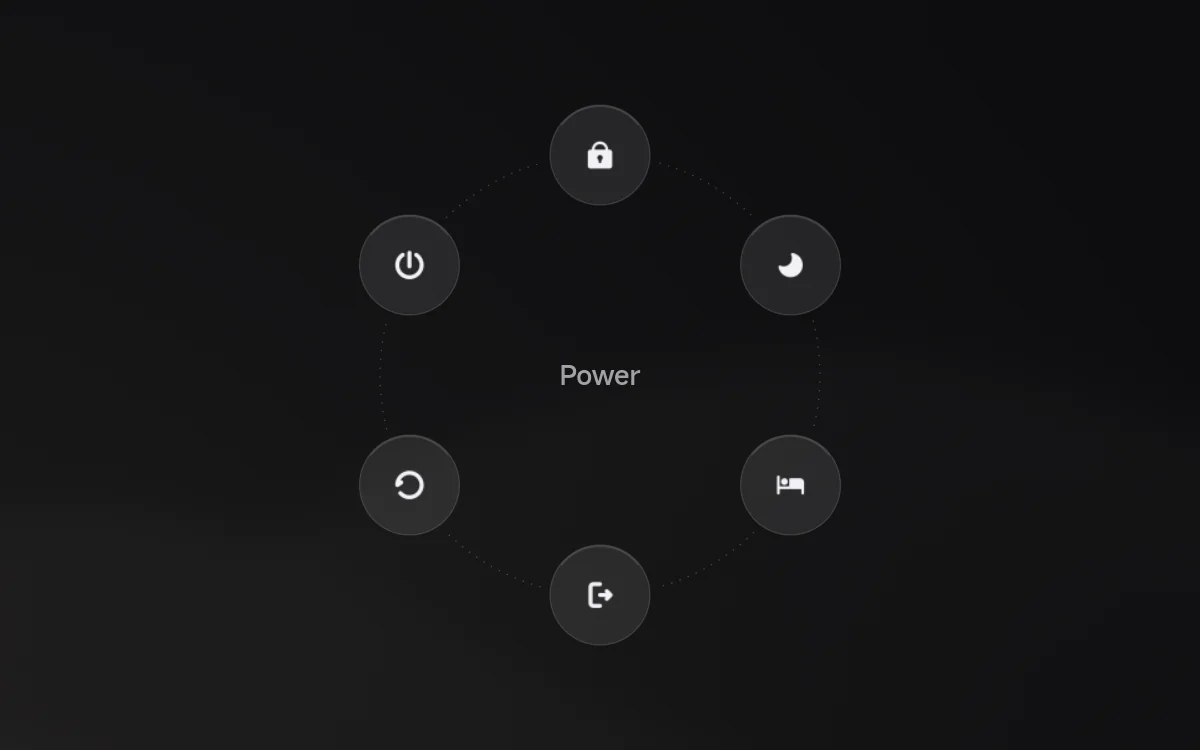
The wheels
Section titled “The wheels”| Binding | Wheel | Actions |
|---|---|---|
Super + Delete |
Power | Lock, sleep, hibernate, log out, restart, shut down |
Super + Shift + Delete |
Power profile | Power saver, balanced, performance |
Super + O |
Display | Both screens, the laptop’s only, the external one only |
Copilot key |
Actions | Opens one of the three others. Press the key again to close it |
The power profile wheel also opens from its icon in the bar.
Use one
Section titled “Use one”- Hold the keys, move the pointer towards an action, let go.
- Or click an action.
- Or pick one with
←→and pressEnter. Escapeor a right-click closes the wheel.
Sleep, hibernate, log out, restart and shut down ask to confirm. A dot marks the profile or the display layout in use.
Change or add a wheel
Section titled “Change or add a wheel”A wheel is a file in ~/.config/roue/wheels/. roue <name> opens <name>.toml.
title = "Power"
[[segment]]icon = "lock.svg"label = "Lock"action = "hyprlock"
[[segment]]icon = "power.svg"label = "Shut down"action = "systemctl poweroff"confirm = trueconfirm_accent = "red"| Key | Use | Default |
|---|---|---|
title |
The name shown in the middle | required |
icon |
An SVG file from ~/.config/roue/icons/ |
required |
label |
The action’s name | required |
action |
The command to run | required |
confirm |
true asks to confirm before running |
false |
confirm_accent |
"red" turns the Confirm button red |
none |
Edit power.toml and actions.toml, or add a file. powerprofile.toml and display.toml are rewritten each time their wheel opens.
Bind a new wheel to a key in private.lua:
hl.bind("SUPER + G", hl.dsp.exec_cmd("$HOME/.local/bin/roue games"))Its look
Section titled “Its look”Colours and sizes are in ~/.config/roue/style.css. The wheel follows light or dark mode.