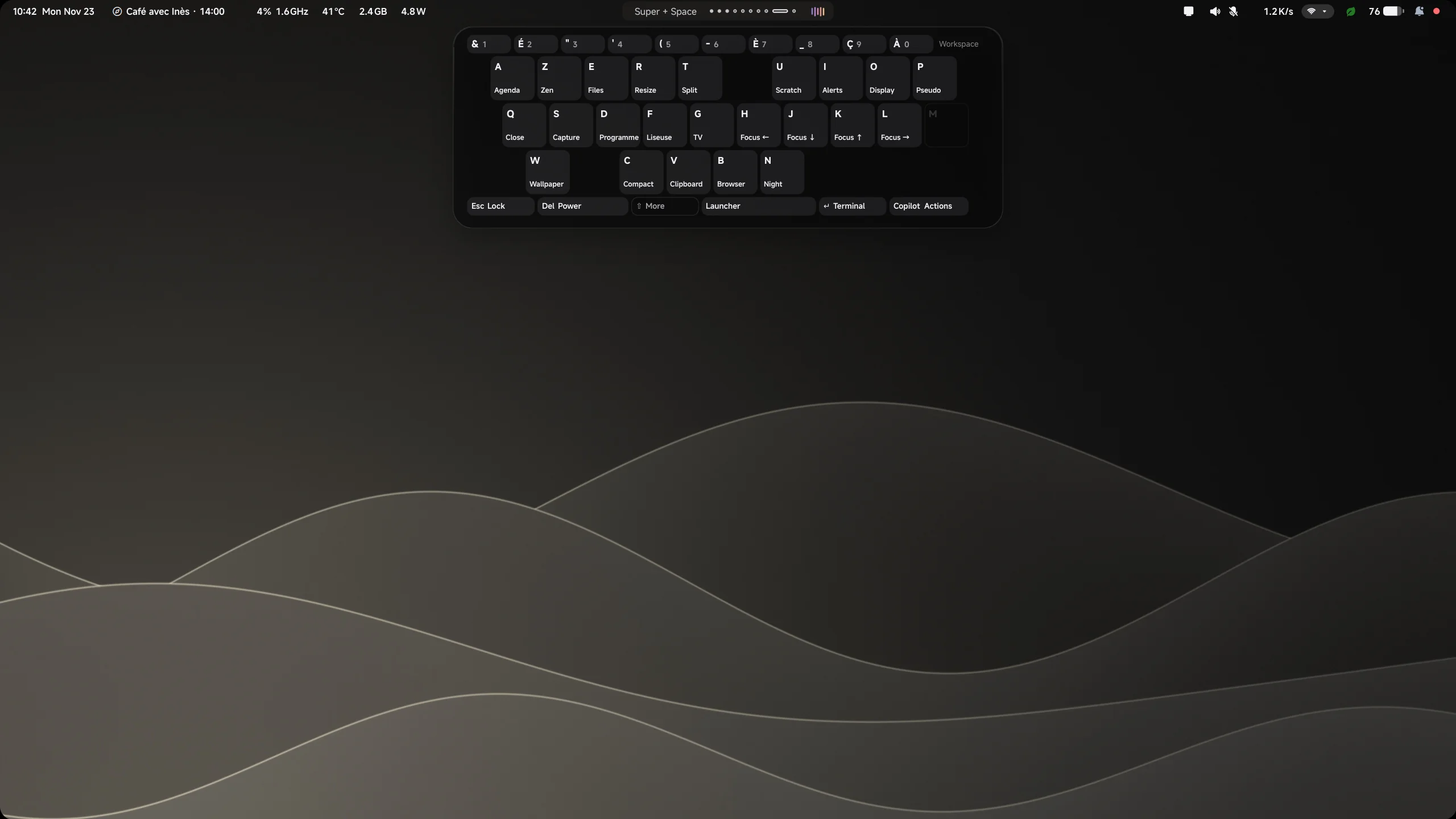
These are for an AZERTY keyboard. The bindings themselves are defined in config/hyprland/hypr/keybinds.luaampersand, eacute, …) are the characters the AZERTY number row types, not physical keys 1 to 10.
Hold Super and the bar shows the bindings on a keyboard. Add Shift for the second layer.
Binding
Action
Super + EnterTerminal (WezTerm by default)
Super + SpaceApp launcher (fuzzel)
Super + EFile manager (Nemo by default)
Super + BWeb browser (Firefox by default)
Super + WPrisme, the wallpaper picker
Super + GAntenne , the TV. Once it’s in front, the guide
Super + FLiseuse: picks up the book being read, or opens the library to search one. Press F1 inside a book for its manual
Super + VClipboard history
Super + AAgenda : add or delete an event
Super + DProgramme’s drawer, with the Programme
Super + Shift + DProgramme’s quick add: an exam, a hand-in, a task or a busy slot in one line
To open another terminal, file manager or browser, see default applications .
Binding
Action
Super + SThe whole screen, opened in Screenshot . Ctrl + C or Enter copies it
Super + Shift + SA dragged region, same keys
q / Esc in ScreenshotClose it
Press the keys, aim while holding them, and let go to confirm. Or click an action, or pick one with ← → and press Enter. Escape or a right-click closes the wheel.
Binding
Wheel
Super + DeletePower menu
Super + Shift + DeletePower profile
Super + ODisplay layout
Copilot keyActions wheel. Press the same key again to close it
Binding
Action
Super + QClose the window
Super + H / J / K / LFocus left / down / up / right
Super + Shift + H/J/K/LMove the window in that direction
Super + Shift + FFullscreen
Super + Ctrl + FMaximise
Super + Shift + SpaceFloat or tile the window
Super + PPseudo-tile
Super + TSwitch the split direction
Super + RResize mode. Use H/J/K/L to resize, and Escape or Enter to leave
Super + left-dragMove the window
Super + right-dragResize the window
Binding
Action
Super + 1..0Go to that workspace
Super + Shift + 1..0Send the window there
Super + scrollPrevious / next workspace
Super + CCompact the workspaces: the occupied ones move up to fill the gaps
Super + UShow or hide the magic scratchpad
Super + Shift + USend the window to magic
Binding
Action
Super + ZZen mode: hides the bar
Super + NNight mode
Super + INotification centre
Super + EscapeLock the screen (hyprlock)
Super + Shift + RReload Hyprland’s config (hyprctl reload)
Super + Shift + MQuit Hyprland
Mute, mic mute and the playback keys also work while the screen is locked.
Key
Action
Volume up / down
5 % steps, up to 100 %
Mute / mic mute
Mutes, or unmutes
Brightness up / down
Never down to 0
Play / pause, previous, next
The player in the bar’s island
Gesture
Action
Three-finger swipe left or right
Previous / next workspace